ZOOM Piano Lessons
Zoom piano lessons are music instruction sessions conducted online using the Zoom video conferencing platform, allowing students and teachers to connect visually and audibly for real-time feedback, demonstrations, and interaction. These lessons typically require a device with a camera and microphone, a stable internet connection, and a clear view of the student’s piano or keyboard.
In-person lessons are a form of learning that takes place with a teacher and student (or students) together in a physical location, offering benefits like real-time, hands-on guidance and direct interaction. This “traditional” model contrasts with online lessons, which leverage technology for flexibility but can lack the personal connection of face-to-face instruction. The best choice between in-person and virtual lessons depends on factors such as the student’s age, comfort with technology, and the specific subject being taught.
ZOOM pian lessons require a code that you will receive once you sign up at out school. Login is simple once you have the code and an agreed appointment slot.
Overall we prefer IN-Person lessons, if possible. But we can change to a ZOOM lesson at any time, for example if weather conditions or a sick family member don’t allow the student to attend the lessons at our school. My Piano Recording Studio makes it possible that the transmitted video stream has the best educational result. An overhead camera, visualizing the teacher’s keyboard, various cameras from the side, and supporting video clips allow the best possible framework for successful online teaching.


Recommendations
Basically, a ZOOM video session can be done with an iPhone, Smart Phone, iPad, Tablet or Laptop computer. However, for best results, some hardware equipment and software settings are crucial.
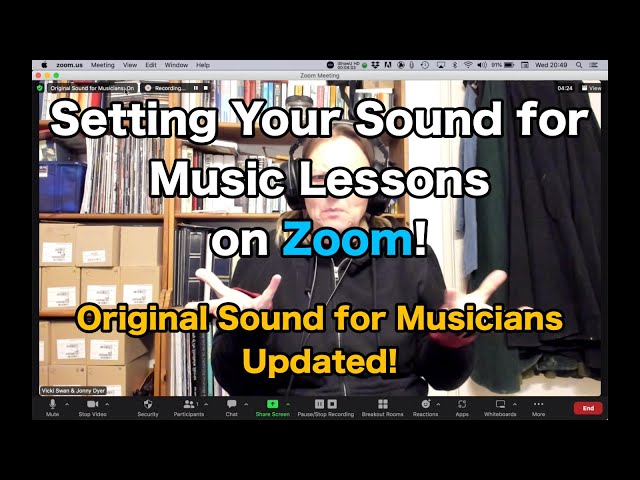
To optimize Zoom for music lessons, enable “Original Sound for Musicians” in audio settings, uncheck “automatically adjust microphone volume,” and use an external microphone for better fidelity. For the best experience, use a desktop computer, wear headphones to avoid echo, and position your camera to show both you and your instrument.
Essential Zoom Audio Settings (Desktop & Mobile)
Original Sound for Musicians: Enable this in settings to prevent Zoom from filtering out musical sounds as background noise.
Disable “Automatically adjust microphone volume”: This stops Zoom from constantly changing your volume level during quiet/loud sections.
Echo Cancellation: Keep this enabled if using speakers; consider disabling if using headphones and facing audio issues.
High-Fidelity Music Mode: Optional, but can be enabled for better sound quality if you have high-speed internet.
Audio Settings on Mobile: Go to Settings -> Audio and select Original Sound for Musicians.
Equipment & Setup Recommendations
Microphone: Use a dedicated USB microphone (e.g., condenser microphone) for much clearer sound than built-in computer mics.
Headphones: Essential for teachers to hear students clearly and avoid feedback.
Camera Angle: Ensure the camera allows the instructor to see your hands (piano keys, guitar fretboard).
Internet Connection: Use a wired Ethernet connection if possible for better stability than Wi-Fi.
Lighting: Ensure good lighting so the instructor can see technique.
Note: The “Original Sound for Musicians” feature is not available on Chromebooks.
The following Videos offer some help for a better ZOOM lesson setup: